



Introduction: A Remote Designed for Simplicity, Reimagined for Creativity
The Apple Remote A2540 is best known as a neat companion for Apple TV, but in a photo or video studio it can quietly become one of your most useful tools. Compact, tactile, and easy to charge, it gives you wireless control over playback, slideshows, and even basic editing actions—without leaving your shooting position.
For photographers and filmmakers who already rely on digital cameras, laptops, and monitors, a second-hand Apple Remote A2540 is a sustainable way to add a layer of control that keeps hands off the keyboard and eyes on the scene.
I once added a simple remote to a cramped studio setup “just for convenience”. Within a day, it had completely changed my workflow—I stopped running back and forth to the laptop and could stay with my subject, keeping the energy flowing while still controlling everything on screen.
That same subtle upgrade is where the A2540 shines: it removes friction from your creative process.

Technical Highlights: Why the Apple Remote A2540 Stands Out
Bluetooth connectivity for cable-free control
The A2540 connects via Bluetooth, so you can control your Mac or Apple TV from across the room. Once paired, it works reliably during presentations, client viewings, or when you are behind the camera but still need to manage what happens on-screen.
USB‑C rechargeable battery
Unlike older remotes that depend on coin cells, the Apple Remote A2540 uses a built‑in rechargeable battery with a USB‑C charging port. For second-hand buyers, this modern connector is easier to integrate into existing workflows—most studios already keep USB‑C cables on hand.
Aluminum body and tactile buttons
The slim aluminum body feels solid and precise, which matters when you are operating it by touch while watching your subject or screen. The clickpad, Back, play/pause, and volume buttons let you confidently control playback and navigation without looking down.

Creative Uses for Photographers and Filmmakers
Control slideshows and client presentations
If you run photo reveal sessions, workshops, or portfolio reviews, the A2540 becomes a subtle yet powerful presentation tool. Pair it with your Mac and control Keynote, PowerPoint, or PDF slideshows while you stand next to your prints or projector image, not behind your laptop.
Instead of breaking eye contact with clients, you can advance images, pause on key shots, or replay video clips with a simple thumb press.
Hands-free video playback on set
Filmmakers can use the Apple Remote A2540 to play, pause, skip, or scrub through reference clips and takes in QuickTime or other playback software. This is ideal when the main computer is connected to a larger monitor across the room, but you are working with actors or crew near the camera.
Trigger editing shortcuts and review tools
With helper apps such as Remote Buddy or similar software, you can map remote buttons to keyboard shortcuts for your editing software. For example, you might assign play/pause, next/previous clip, or rating commands in your preferred photo or video editor.
It will not replace a full control surface, but for simple review sessions, the A2540 offers a portable, battery-friendly option.
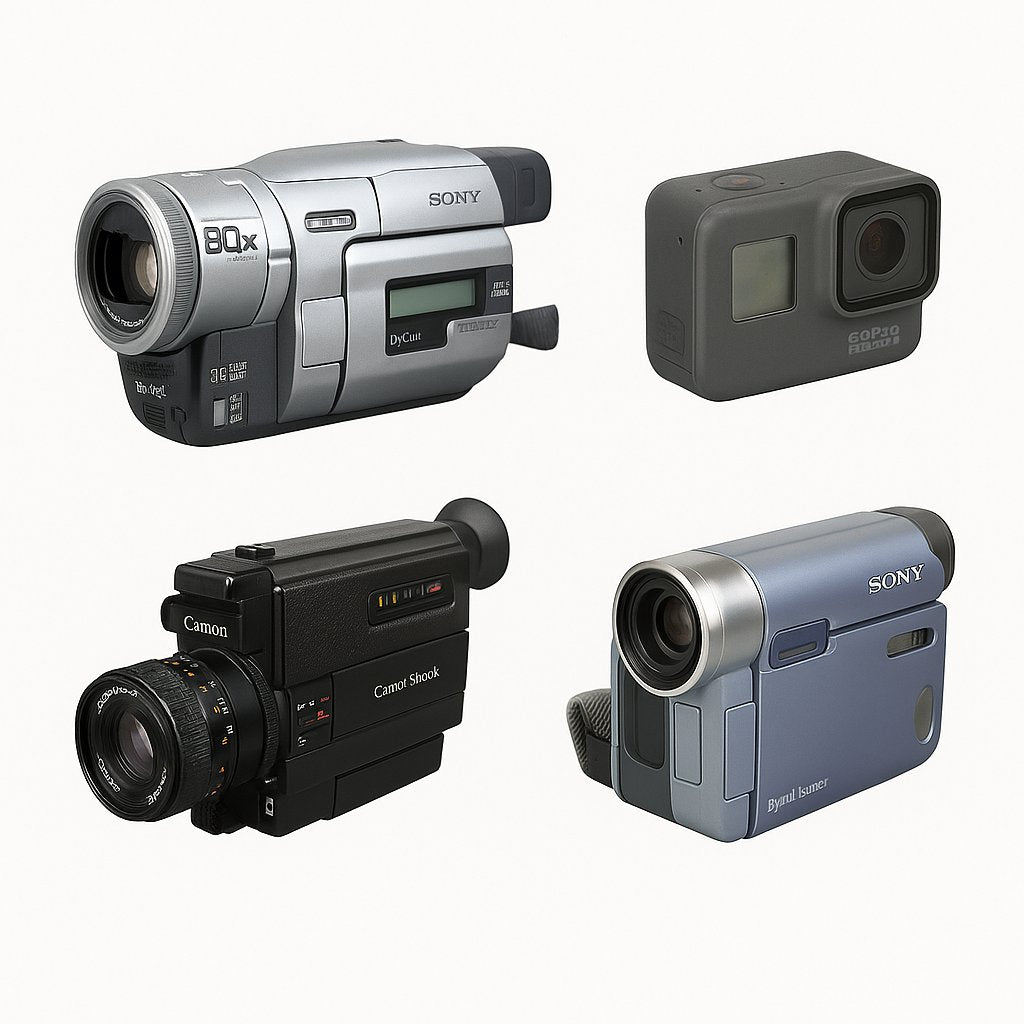
If you already rely on curated video gear and monitors, adding a second-hand A2540 is an easy way to streamline how you interact with on-screen content.
Second-Hand Buying Guide for the Apple Remote A2540
Buying the Apple Remote A2540 used is both budget-friendly and sustainable. To get a reliable unit, focus on function first, cosmetics second.
Essential checks before you buy
- ✅ Pair remote via Bluetooth (hold Back + Volume Up).
- ✅ Test in Keynote or QuickTime playback.
- ✅ Assign editing shortcuts via software like Remote Buddy.
- ✅ Keep a USB‑C cable ready for overnight charging.
- ✅ Check for clean aluminum body.
- ✅ Verify battery holds charge.
- ✅ Test Bluetooth pairing with Mac or Apple TV.
- ✅ Ensure play/pause and power buttons are functional.
Cosmetic wear vs. real problems
Light scratches on the aluminum housing are normal for a second-hand remote and usually only cosmetic. However, avoid remotes with:
- Sticky or sunken buttons.
- Cracked casing, especially near the corners.
- Severely worn clickpad surface.
These issues may indicate drops or liquid damage that could affect long-term reliability.
Why second-hand makes sense
Remotes are low-wear electronics compared to cameras or lenses. When sourced carefully, a used A2540 can perform nearly like new, while saving you money and keeping one more device in use rather than in a drawer or landfill. It is an easy way to extend your creative toolkit alongside other sustainable photography accessories.
Setup Tips and Accessory Recommendations
How to pair your Apple Remote A2540
Pairing the A2540 with your Mac or Apple TV takes just a moment:
- Turn on Bluetooth on your Mac or Apple TV.
- On the remote, hold down the Back and Volume Up buttons together.
- Wait for the pairing prompt to appear on your screen.
- Confirm pairing in the Bluetooth settings.
After this, the remote should reconnect automatically when in range and powered on.
Optimizing the remote for creative work
Once paired, test it in Keynote or QuickTime to confirm responsive button presses and smooth navigation. Then consider using third-party software to assign your most-used keyboard shortcuts—play/pause, next, previous, or full-screen toggle—to transform it into a compact editing companion.
Useful accessories to keep nearby
To get the best from a second-hand Apple Remote A2540, keep a few small extras in your kit:
- A reliable USB‑C cable for overnight charging before big shoots.
- A soft pouch or drawer space to prevent dents in transit.
- A labeled charging hub where you also charge cameras, phones, and lights.
Conclusion: Small Device, Big Impact on Creative Flow
The Apple Remote A2540 is a modest-looking accessory that can have an outsized effect on how smoothly your studio runs. From client presentations to on-set playback and simple editing controls, it lets you stay present with your subject while managing what happens on screen.
Buying second-hand keeps your setup affordable and environmentally conscious, especially when paired with used cameras and other carefully chosen tools. For many photographers and filmmakers, this little aluminum remote quickly becomes something they did not know they needed—until they use it for a single session.
FAQs
Is the Apple Remote A2540 compatible with my Mac or iPad? Yes. It pairs via Bluetooth with Macs and with certain iPads that support Bluetooth remotes. Compatibility with iPhones and third-party devices is more limited, so always check your device’s Bluetooth remote support first.
How can I pair the used Apple Remote A2540? Hold the Back and Volume Up buttons at the same time until the pairing prompt appears on your screen, then confirm the connection in the Bluetooth menu on your Mac or Apple TV.
What should I check before buying a used Apple Remote A2540? Confirm that every button responds, the touch or click area feels smooth, the battery charges over USB‑C and holds power, and the aluminum body has no severe dents or cracks.
Can I use the A2540 as a remote for photo presentations? Yes, it works very well for controlling slideshows or playback during shoots, especially when paired with a Mac or Apple TV connected to a monitor or projector in your studio.
Ready to refine your setup? Explore thoughtfully selected second-hand photography accessories, digital cameras, and video gear to build a creative workspace that matches your vision and values.